Forums
|
Forums >> Revit Building >> Technical Support >> Filled Region Background Color - Where is it coming from?
|
|
|
active
Joined: Mon, Aug 6, 2012
0 Posts
 |
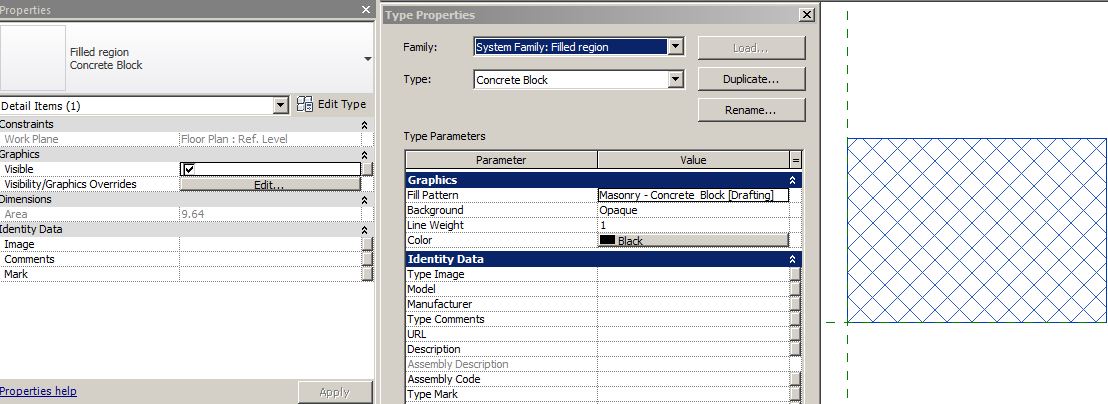
I have a Detail Family with a Filled Region: Fill Pattern=Diagonal Up (Drafting), Background=Opaque, Line Weight=1, Color=Black.
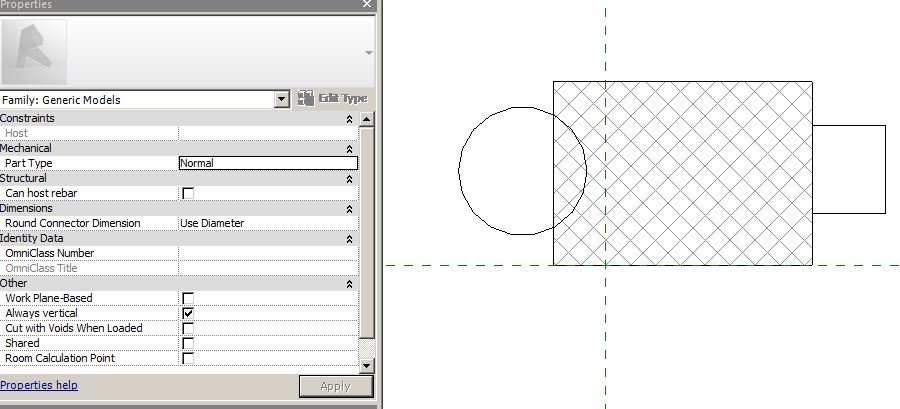
I have nested this Detail Family into a Generic Model Family. Filled Region displays correctly in the Generic Model Family: black Diagonal Up lines over an opaque background (=white; screen background color).
When I load this Generic Model/Detail Family into a Project, the Filled Region displays black Diagonal Up lines over a GRAY background. However, if I load the Detail Family directly into the Project, the Filled Region in that instance displays black Diagonal Up lines over an opaque background (=white; screen background color).
So, what am I missing? Why is a background color being applied and, where is it coming from?
Build: 16.0.462.0
20150506_1715(x64)
Service Pack 1
|
This user is offline |
|
 | |
|
|
site moderator|||
Joined: Tue, May 16, 2006
13079 Posts
 |
While in the project, look in your materials and change the color for default. Let us know if that works.
Edited on: Fri, Feb 12, 2016 at 1:03:25 PM
|
This user is offline |
|
|
|
active
Joined: Mon, Aug 6, 2012
0 Posts
|
Tried this; can't locate a Material that's associated with it, or a Graphic Option. It totally replicable from scratch though.
|
This user is offline |
|
|
|
active
Joined: Mon, Aug 6, 2012
0 Posts
|
I create a Detail Family with a Filled Region: Cross-hatch of any kind with an opaque background. I load this Detail Family into a Generic Model Family and then load this Generic Model Family into a Project...Opaque Fill is GRAY.
I load the Detail Family directly into the same Project...Opaque Fill is White (Screen background color).
Two Family instances. Same Detail. Two different fill patterns.
EDIT: Same result on a different workstation. Apparently, this is normal behavior. Still, I wonder what is determining the fill color.
EDIT: WYSIWYG. It does print filled too.
Edited on:Fri, Feb 12, 2016 at 1:32:25 PM
Edited on: Fri, Feb 12, 2016 at 1:44:33 PM
Edited on: Fri, Feb 12, 2016 at 1:53:01 PM
Edited on: Fri, Feb 12, 2016 at 1:53:31 PM
|
This user is offline |
|
|
|
site moderator|||
Joined: Tue, May 16, 2006
13079 Posts
|
I told you what material to change "Default" - Try that!
|
This user is offline |
|
|
|
active
Joined: Mon, Aug 6, 2012
0 Posts
|
You can repeat it and punctuate it all you like, WWHub, but your suggestion DOES NOT work. I already told you this. There is NO Material associated with this fill pattern. I get the exact same results if I create the two Families and the Project with no materials in any of them – zero, zip, nada.
A Filled Region’s opaque fill pattern is supposed to be the color of the screen background. However, if I load the Filled Region Detail Family into a Project as a nested Family within a Generic Model Family, the fill pattern is GRAY. But, if I load that same Filled Region Detail Family directly into the Project, the fill pattern is the color of the screen background.
Try it out for yourself. Follow these steps I posted on Revit Forum:
1. Create a new family using a Detail Family Template. In that Detail Family sketch a Filled Region and assign it any OOTB cross-hatch pattern. Set the Background to Opaque.
2. Create a new family using the Generic Model Template. Load the Detail Family created in#1 above, into this Generic Model Family (Plan Vew: Ref. Level View).
3. Create a new Project. Load the Generic Model Family with nested Detail created in #2, into this Project (Plan View: Level 1). The opaque fill is GRAY.
4. Load the Detail Family created in #1, into this Project (Plan View: Level 1). The opaque fill is White (or whatever the color your screen background).
Edited on: Sun, Feb 14, 2016 at 11:50:10 AM
Edited on: Sun, Feb 14, 2016 at 2:21:23 PM
|
This user is offline |
|
|
|
active
Joined: Mon, Aug 6, 2012
0 Posts
|
See attached rvt...
|
This user is offline |
|
|
|
site moderator|||
Joined: Tue, May 16, 2006
13079 Posts
|
If you notice, in my first post I only suggested that you change the default material setting and I asked you to report if it worked. I did not know if it would or not. So I followed your test. Images:
- Detail with opaque filled region
- Detail loaded into Generic model with annotative line and 3D cube (Note region hides cube only.)
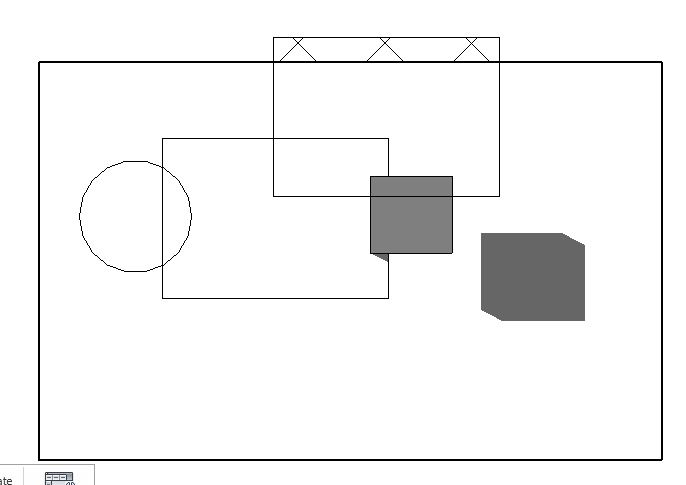
- Generic placed in model with wall. (Note, region is white and no longer hides cube or wall.)
- View set to consistent color or shaded. Both Cube and region are grey.
- Default set changed to white - Generic set to model material. (Note - cube is now white so default only affects the solid)
So the grey problem is only in a colored view not hidden line.
|
This user is offline |
|
|
|
active
Joined: Mon, Aug 6, 2012
0 Posts
|
Thanks WWhub. So my take-away is that you weren't able to determine where the gray fill pattern is coming from either. So, basically, a nested filled region is useless to a point (yes, I understand it isn't an issue in Hidden mode). FYI: The other oddity I discovered, is that a nested Filled Region casts shadows. Check it out: offset the Generic Model containing the nested Filled Region in Plan View and turn Shadows ON.
Anyhow, I appreciate your help. I'm going to submit this to Autodesk and see what they have to say.
Take care.
|
This user is offline |
|
|
|
site moderator|||
Joined: Tue, May 16, 2006
13079 Posts
|
The fact that it is grey indicated to me that the program treated it like a solid and thus it would create a shadow.... That's why I thought it would be a default. BTW - I changed all of the defaults to white but obviously this is a system level one that we don't see and can not change.
I don't like embedded details in model elements. I have never seen them work well enough to mess with. Better off to group.
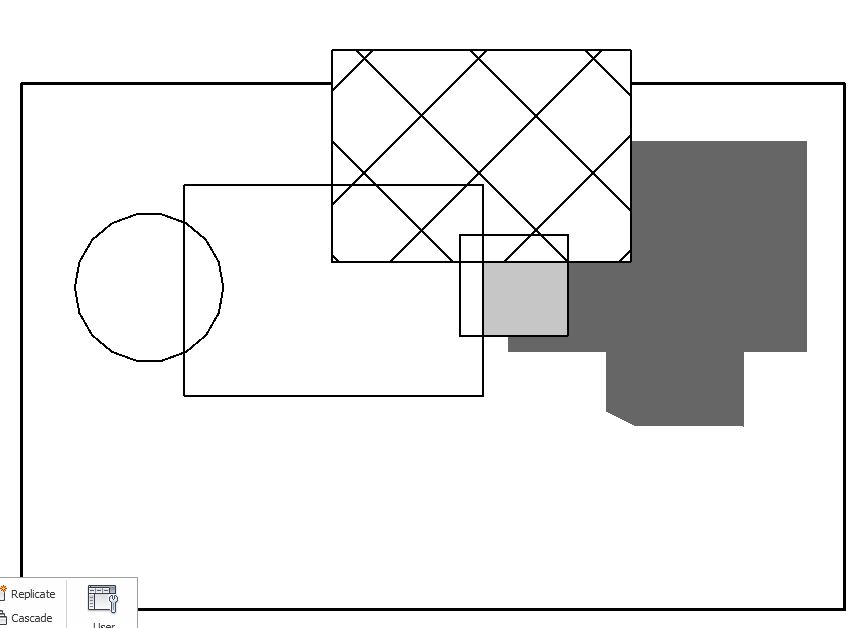
So here is a strange one. I took the previous detail element and added a masking region where the hatch was then added the transparent hatch family to the right of that, added a floor in the model and turned on shadows. Now look at the image. This family is at 4'. Cube has a shadow on the floor and the masking region. Hatch only shows where there is no floor.
Now I modify the nested family back to an opaque one and .... what's this? No grey tone in the hatch yet it seems to be opaque - masks the grey of the cube but the cube grey is gone where the masking region is. The cube and the filled region casts a shadow but not the masking region.
NO PREDICTABLE RESULTS = DO NOT NEST!
|
This user is offline |
|
| |
|
|
active
Joined: Mon, Aug 6, 2012
0 Posts
|
Agreed. Let you know if Autodesk returns any useful information.
|
This user is offline |
|
|
|
Similar Threads |
|
filled region pattern color changes when drawing scale changes |
Revit Building >> Technical Support
|
Thu, Apr 14, 2016 at 7:32:06 AM
|
4
|
|
Filled Regions and Shadows!!!??? |
Revit Building >> Technical Support
|
Tue, Jul 22, 2008 at 5:03:14 AM
|
14
|
|
Remove Model Filled Region @ Fixtures |
Revit Building >> Technical Support
|
Wed, Aug 15, 2012 at 4:19:33 PM
|
2
|
|
Line disappears under Masking/Filled Region |
Revit Building >> Technical Support
|
Mon, Jan 5, 2009 at 11:36:40 AM
|
2
|
|
Deleting Types From Filled Region Families |
Community >> The Studio
|
Tue, Sep 9, 2008 at 6:56:41 PM
|
10
|
|
|
Site Stats
Members: | 2161655 | Objects: | 23325 | Forum Posts: | 152479 | Job Listings: | 3 |
|

 Search
 143959_Exhibit_for_Filled_Region_Behavior.rvt