|
|
|
Home | Forums |
Downloads | Gallery |
News & Articles | Resources |
Jobs | FAQ |
| Join |
Welcome !
|
8 Users Online (6 Members):
Show Users Online
- Most ever was 626 - Mon, Jan 12, 2015 at 2:00:17 PM |
Forums
|
Forums >> Revit Building >> Technical Support >> Constraining Imported 3D CAD Objects to Ref Planes
|
|
|
active
Joined: Mon, Dec 28, 2009
9 Posts
No Rating |
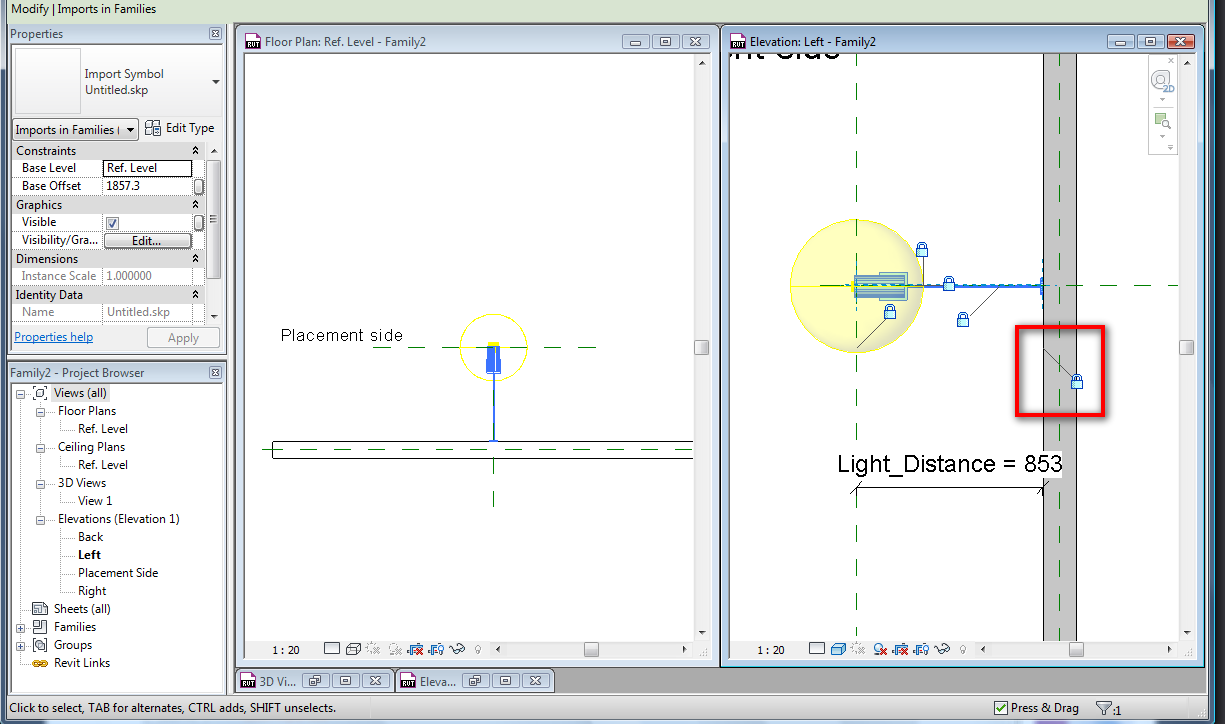
Ok, so I've been scouring the internet for an answer to my ridiculous Revit needs. So, I've been tasked to do a bunch of interior renderings in Revit, but a lot of the lighting fixtures are pretty specific and only drawn in 3d CAD. So I've been able to create some custom ceiling pendant fixtures and give it a parameter that controls how low it hangs from the ceiling. I did this by setting the imported object's reference plane to Ref. Level and attaching parameterized dimensions from Ref. Level to Ceiling Level. Ok, so I basically found a workaround to fake-attach the fixture to a hanger. My question is whether or not it's possible to truly constrain an imported CAD object to a reference plane other than "Ref. Level." It is always grayed out whenever I go into the options.Another thing. When I'm importing custom light fixtures that are wall mounted, I'm having an even more difficult time getting it to "attach" to the wall because wall thicknesses can change, but there doesn't seem to be a way to attach or even fake-attach the imported object to the outermost surface of the wall. It's because these objects can only refer to a horizontal plane. Am I missing something? Is there a way to constrain the imported object to the a vertical surface? I created this family with the wall-based template, which gives a default wall thickness. However, the actual thickness of the wall I'm placing it on will be 12 inches. This causes the light fixture to disappear inside the wall, which I fixed by making the imported object float off the wall several inches. Is there a right way to do this, besides re-creating the fixture in Revit?
|
This user is offline |
|
 | |
|
|
site moderator|||

Joined: Tue, May 22, 2007
5921 Posts
 |
First, CAD files are "Dumb" objects, they aren't parametric, you can use them but you can't modify but you can Scale..... " did this by setting the imported object's reference plane to Ref. Level and attaching parameterized dimensions from Ref. Level to Ceiling Level. Ok, so I basically found a workaround to fake-attach the fixture to a hanger." - You don't need to do that like you can see in my first image, just create ref planes, attach with "Align" tool and lock the Cad file to the ref. plane you want then add some parameters to controlthe position... "Another thing. When I'm importing custom light fixtures that are wall mounted, I'm having an even more difficult time getting it to "attach" to the wall because wall thicknesses can change" - Attach the cad file to the face of the Wall in that family, second and third image...
-----------------------------------
I Hope and I Wish to LEARN more, and more, and more.... REVIT |
This user is offline |
|
|
|
active
Joined: Mon, Dec 28, 2009
9 Posts
No Rating |
Ahhh, I wasn't aware of the align tool. I will try that when I get back to work next Monday. Thanks for the reply, I'll update the thread with my findings.
|
This user is offline |
|
|
|
Similar Threads |
|
Constraining a circle centered between two reference planes |
Revit Building >> Technical Support
|
Fri, Apr 7, 2017 at 8:22:50 AM
|
3
|
|
How do I remove faceting from imported 3d objects? |
Revit Building >> Technical Support
|
Fri, Feb 22, 2013 at 7:26:40 AM
|
2
|
|
Escalator Help |
Revit Building >> Technical Support
|
Mon, Jun 4, 2012 at 6:16:20 AM
|
0
|
|
Wish List - Toggle Reference Planes |
General Discussion >> Wishlist
|
Fri, Sep 24, 2010 at 1:23:59 PM
|
0
|
|
how to change defined ref planes in a family |
Revit Building >> Technical Support
|
Mon, Apr 18, 2011 at 2:07:00 AM
|
4
|
|
|
Site Stats
Members: | 2161655 | Objects: | 23325 | Forum Posts: | 152479 | Job Listings: | 3 |
|
 Search